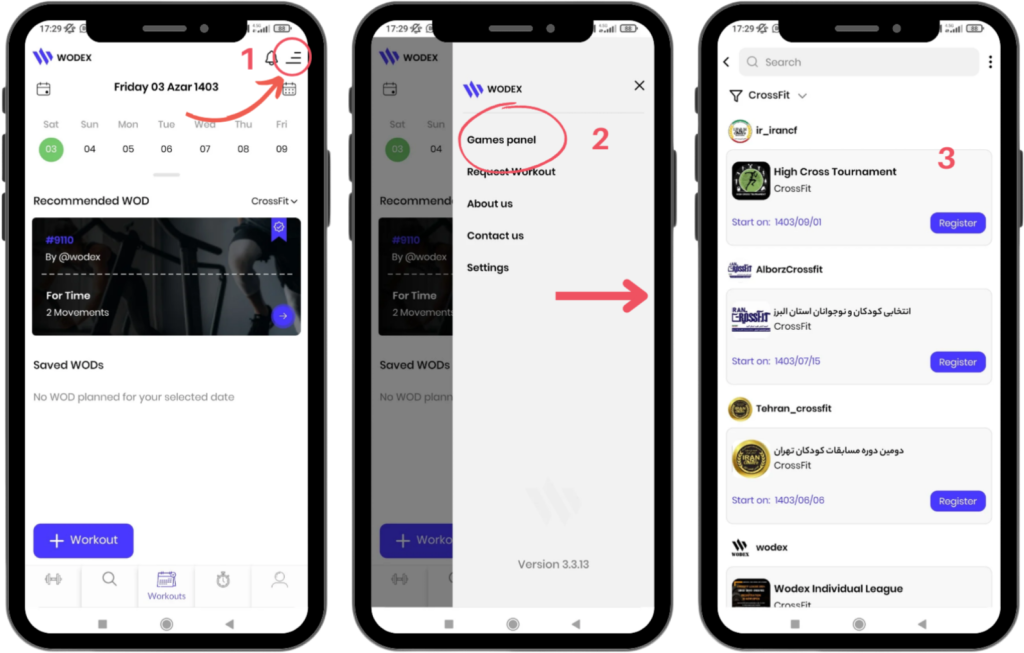
On the main page, as shown in Image 1, tap the menu icon in the upper right corner of the screen.
Select the Games Panel option to access the list of games.
In this section, the complete list of games will be displayed. Find and select your desired competition.
How to Access the Judges Panel
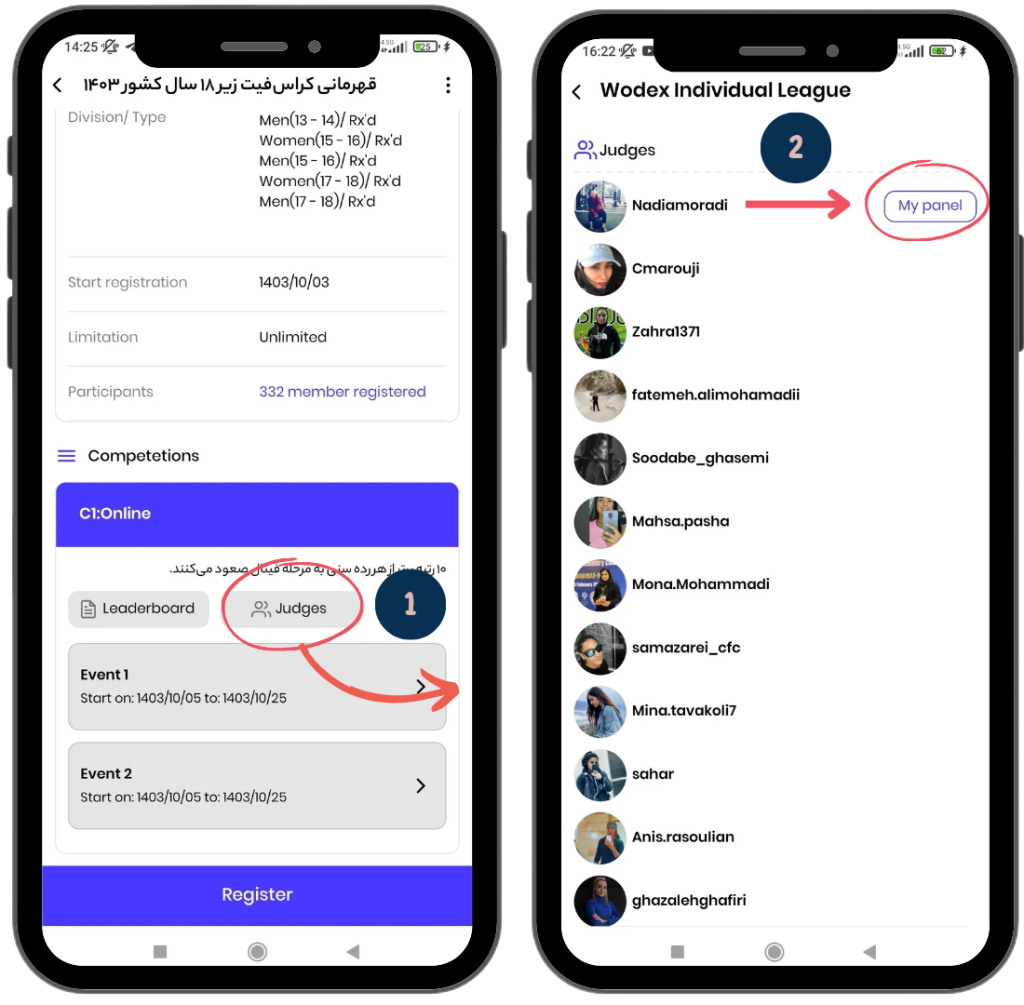
From the “Competitions” section, click on the “Judges” button to enter the Judges Panel.
Then, next to your name, click on the “My Panel” button to access your specific judging panel.
How to Navigate the Events List Page
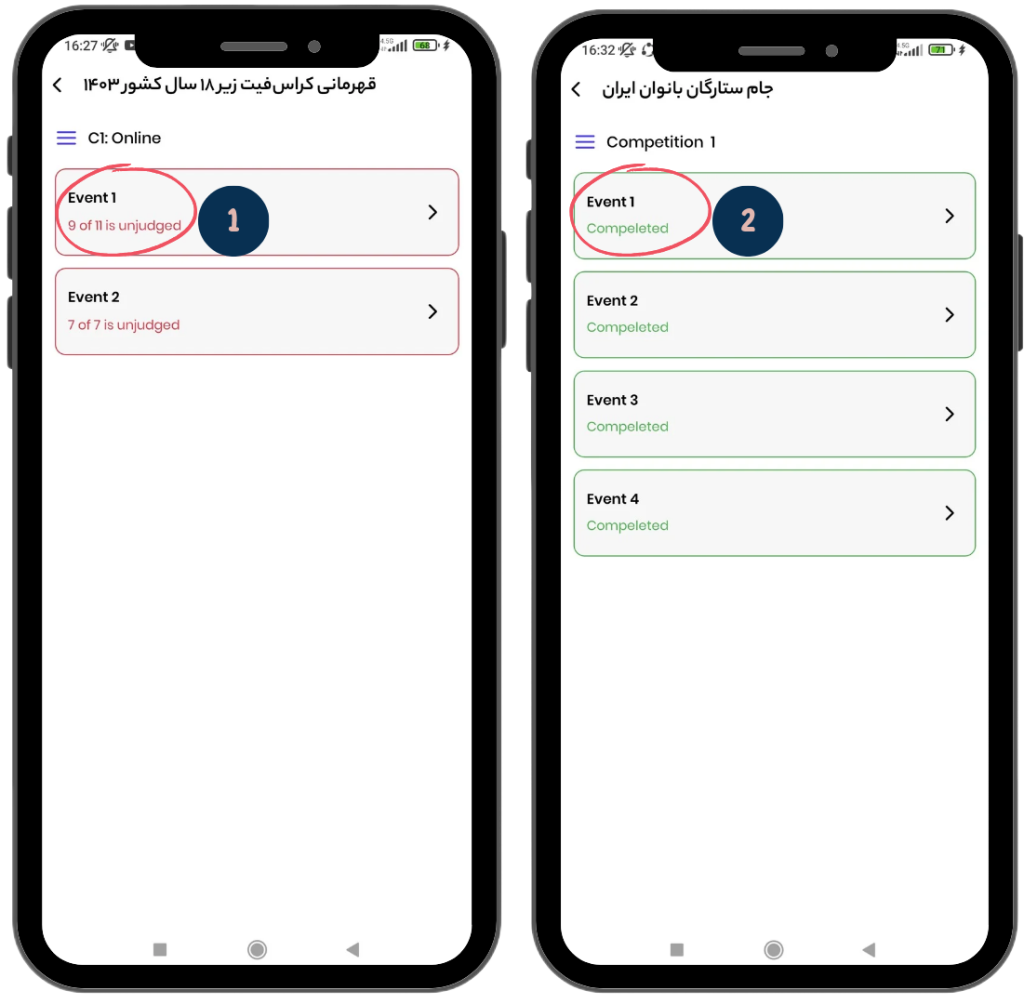
Event List Overview: In this page, you can view the complete list of events.
Event Box Details: Each event box shows the total number of athletes to be judged, as well as the number of athletes who have been judged so far. The number of athletes still awaiting judgment is highlighted in red.
Example: As shown in the image on the left, it states: “9 out of 11 not judged yet.”
Completion Status: If all athletes have been judged, it will be marked as “Completed” in green. In the image on the right, you can see an event where the judging has been completed.
Reviewing the Events: You can click on any event to get more details or review the status of the judging process.
This page allows you to keep track of judging progress and ensures that all athletes are fairly assessed before the event concludes.
How to Navigate the Athletes List Page
In this page, detailed information about the judging and status of athletes is displayed.
Left Image: Example of an online event.
Right Image: Example of an in-person event.
1) Number of Unjudged Athletes:
In section 1, the number of athletes who have not been judged yet is displayed.
Example: “4 athletes are unjudged.”
If all athletes have been judged, it will display “Completed” in green.
Search Athlete Name: From section 2, you can search for an athlete by name.
3) Filter Athletes: In section 4, you can filter athletes by division (Division) and level (WOD Type).
Items in Each Athlete’s Box:
4) Name and Image of the Athlete: At the top of each athlete’s box, the athlete’s name and image are shown.
5) Athlete Score (for Online Events): If the event is online, the athlete enters their score when submitting the video. This score is displayed informally in orange.
6) Competition Details (for In-Person Events): If the event is in-person:
The competition date, time, heat number, and lane number of the athlete are shown.
Example: “The judge needs to be present on [date], at [time], Heat 1, Line 9.”
7) Athlete Profile: By clicking on the Athlete button, you can view the athlete’s profile.
8) Score Registered by the Judge: The score entered by the judge is displayed in green. This score will be updated immediately on the leaderboard.
9) Judge’s Comment: The judge can leave a comment for the athlete, such as: “The repetition of [movement] was a mistake due to [reason], and one faulty repetition was recorded.”
The athlete can view the comment on the leaderboard. The head judge can also read the comment by clicking the comment icon.
Comments should be written respectfully. Start with “Hello dear athlete,” and end with “Wishing you success.” For example: “Hello dear athlete, the repetition of [movement] was a mistake due to [reason], and one faulty repetition has been recorded. Wishing you success.”
10) Disqualified Status: If the judge disqualifies the athlete, the disqualification status will be recorded for them.
Priority of the Head Judge’s Score: If both the judge and head judge enter a score at the same time, the head judge’s score takes priority, and it will be displayed on the leaderboard.
How to Navigate the Score Page
This page is for entering athletes’ scores and helps judges to input final scores and add comments.
Left Image: Example of an online event.
Right Image: Example of an in-person event.
1) Athlete or Team Information: At the top of the page, the information of the athlete or team is displayed.
For individual events, the athlete’s username, photo, and category are shown.
For team events, the team name and the usernames of the team members are visible.
2) Show WOD: If you’ve forgotten the WOD items, you can click on the “Show WOD” button to navigate to the relevant WOD page.
3) View Video (for Online Events): If the event is online, you can view the athlete’s video from this section.
Under normal conditions, clicking on the play icon will start the athlete’s video. If you encounter an error, follow the instructions provided at the end of this article
4) Event Information (for In-Person Events): If the event is in-person, this section displays details such as the competition venue, date and time of the competition, heat number, and lane number of the athlete you need to judge.
5) Disqualify: If the athlete has been disqualified, you must activate the “Disqualify” button.
6) Enter Score: In this section, you need to enter the athlete’s score.
7) Write Comment: You can write your comment for the athlete. For example: “The repetition of [movement] was a mistake due to [reason], and one faulty repetition has been recorded.”
8) Submit and Save: At the end, click on the “Submit” button.
Please note that once you submit, the score you entered will automatically and instantly be displayed on the leaderboard for everyone to see.
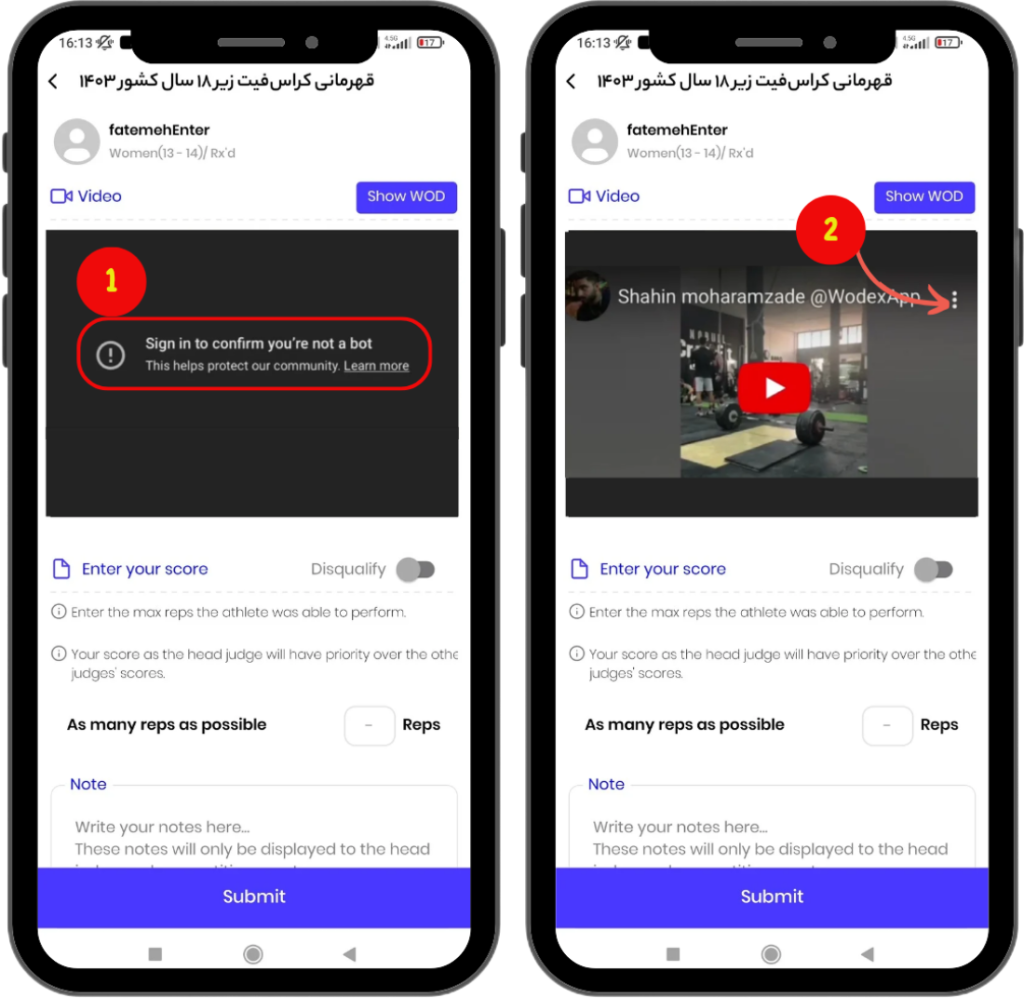
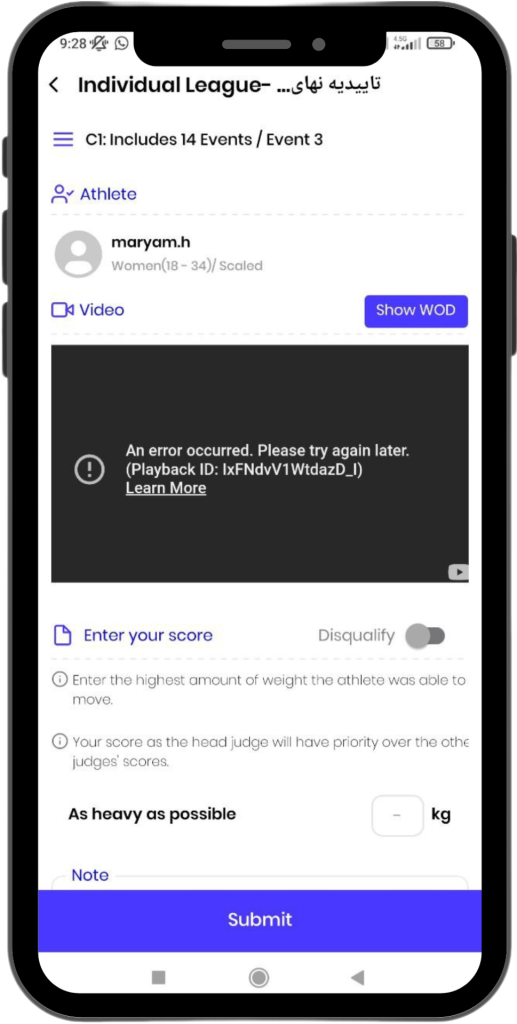
This error occurs because your YouTube account is not synced with your other applications, and therefore it cannot verify that you are not a robot. If you encounter this error:
At the beginning of accessing the score submission page, as shown in the image on the right, click on the three-dot icon and copy the video link.
Then, paste the copied link into YouTube’s search bar to watch the video
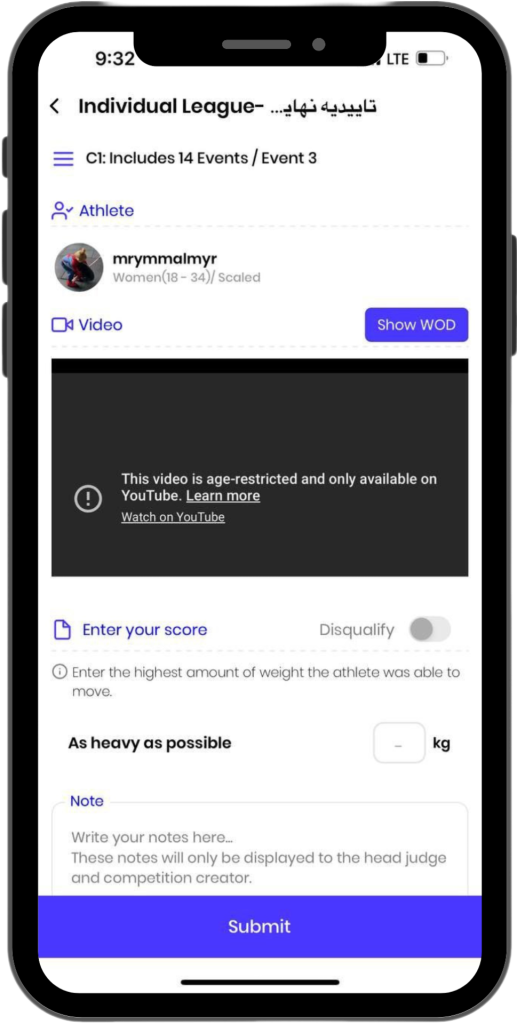
This error appears when the athlete has enabled the age-restriction option while uploading the video to YouTube.
Leave the following comment for the athlete: “Hello dear athlete, your video cannot be viewed because you have enabled the Age-restricted option. Please disable this setting so the judging can proceed. Wishing you success, dear athlete.”
This error occurs when the athlete has entered an incorrect link in WODEX.
For example, they might have provided their YouTube profile link instead of the video link.
Leave the following comment for the athlete: “Hello dear athlete, you have entered the wrong link, and your video cannot be displayed. Please enter the correct video link. Wishing you success, dear athlete.”
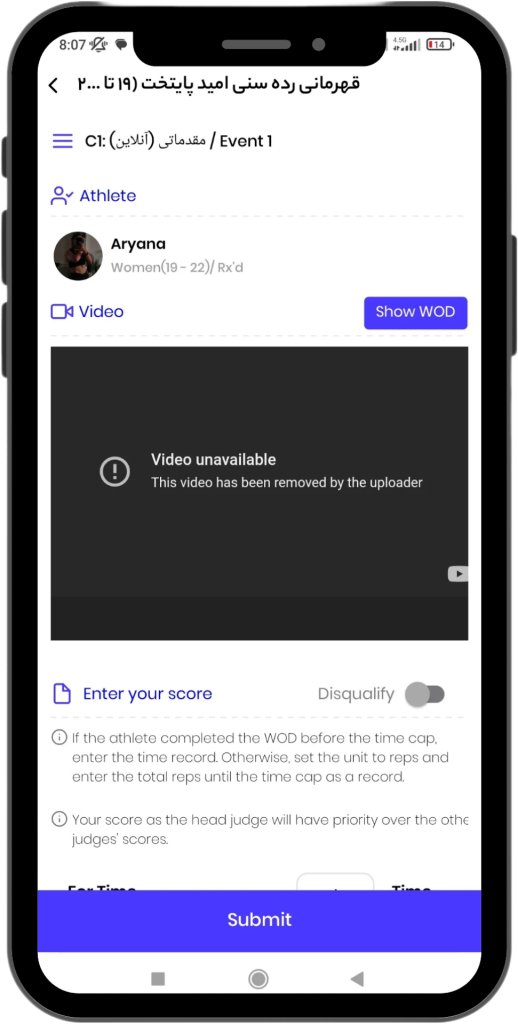
This error occurs when the athlete has deleted their video from YouTube.
Leave the following comment for the athlete: “Hello dear athlete, your video has been deleted from YouTube, which is why it cannot be displayed. Wishing you success, dear athlete.”
Wodex League® is an annual athletic event designed to determine the fittest athlete of the year. The league follows a multi-stage structure that includes both online and in-person...
CrossFit Workout: Sunday, March 09, 2025
This for-time workout emphasizes speed, power, and endurance.Thrusters, a combination of a front squat and push press, engage the entire body with a focus on...