The WODEX app is an advanced platform that allows coaches and athletes to easily digitize their workout programs and create them in the fastest time possible.
With a comprehensive list of exercise movements, this app enables users to view the movements and select the ones they want to include in their workouts. Due to the high variety of each exercise, this feature helps in creating diverse and engaging workout programs.
All your workout programs are automatically stored in your profile, so you no longer need to worry about losing your programs. These programs can be easily shared with others, allowing you to exchange them with fellow athletes and coaches.
If you are unfamiliar with any of the exercises, simply click on the exercise to access step-by-step instructions. These tutorials provide detailed guidance for each movement, assisting you in learning them effectively.
The workout programs created on WODEX are published online along with the username of the program creator, making them accessible anytime and anywhere.
In this article, we will guide you through the process of creating a workout program on WODEX
Creating a Workout Program in the WODEX App
Initial Settings:
1) WOD Name:
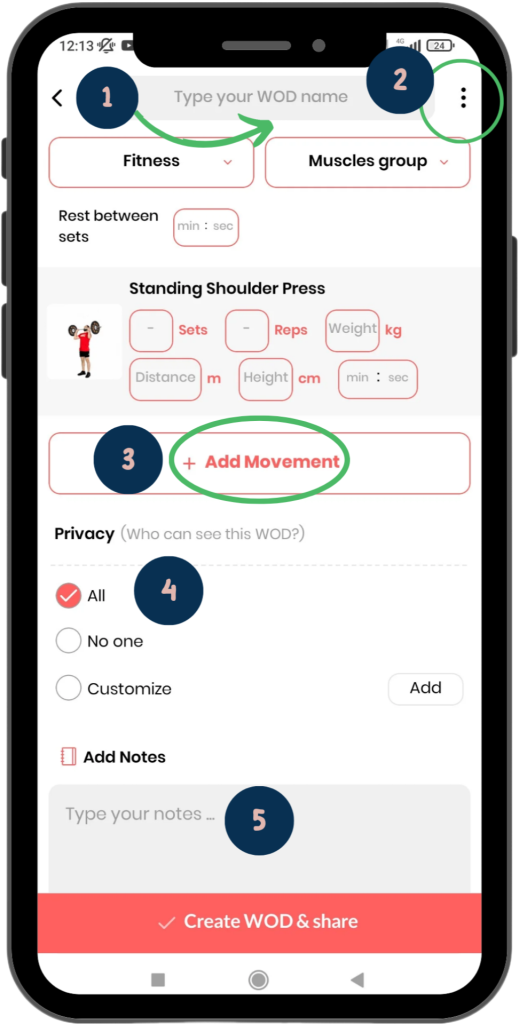
As shown in the image, here you need to write the name of your workout program. The name can be anything. It’s recommended to use appealing names that attract others.
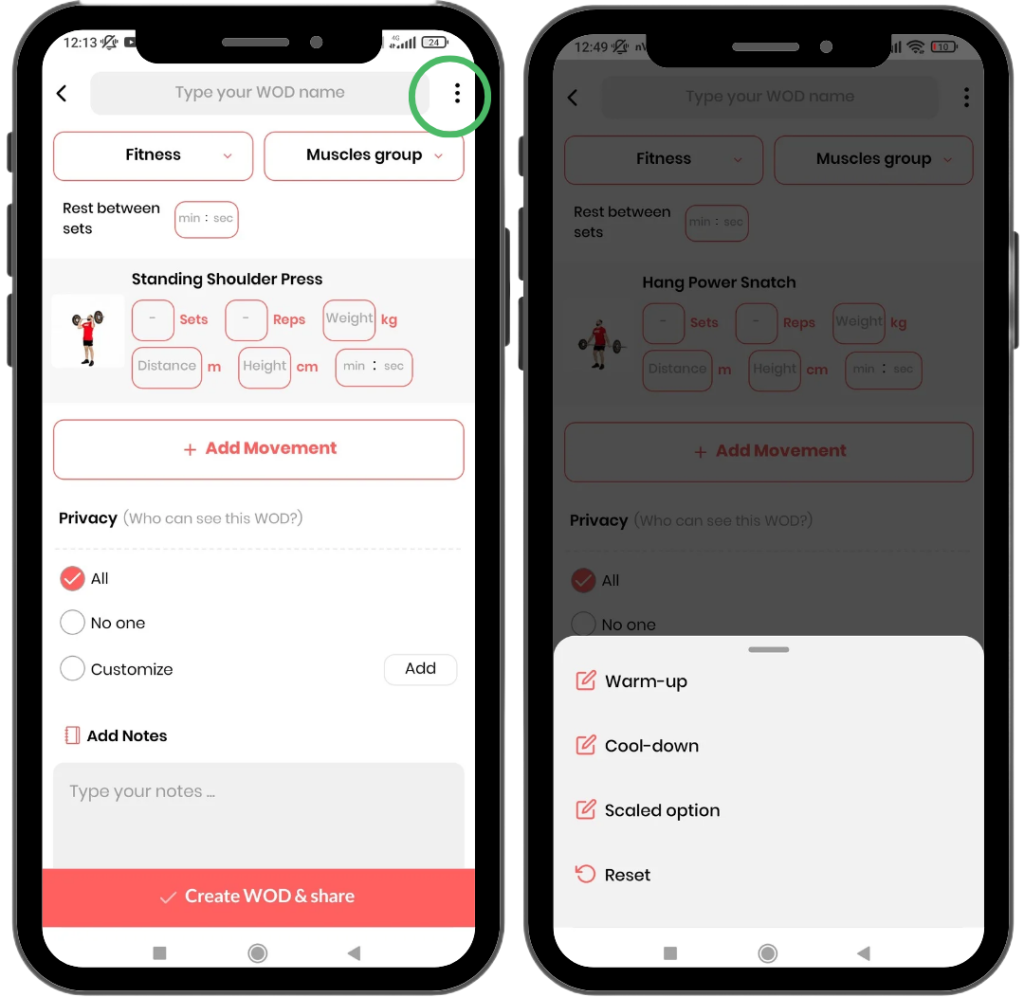
2) Additional Features: By clicking on the three-dot icon, a list of options such as adding warm-up programs, cool-down programs, and scaled programs will appear. We will explain each of these options at the end of this article.
3) Add Movement: By clicking on the Add Movement button, you can select the movements you want to include in your workout.
4) Privacy: In this section, you can specify who can view your workout program.
a) All: By default, the program is set to this option. This means your workout program will be visible to everyone.
b) No One: Selecting this option locks the program, making it invisible to others. If anyone tries to access the program, the following error message will appear: Oops… This WOD is locked by the creator
c) Customize: This option allows you to make the workout visible only to specific athletes. After selecting this option, you must enter the username of the athlete you want the workout to be visible to.
5) Workout Tips: In this section, you can enter any tips related to the workout. For example: Warm up well before the workout. Train with high energy.
Finally, click the Create & Share button to create your workout program.
Choosing a Workout Model
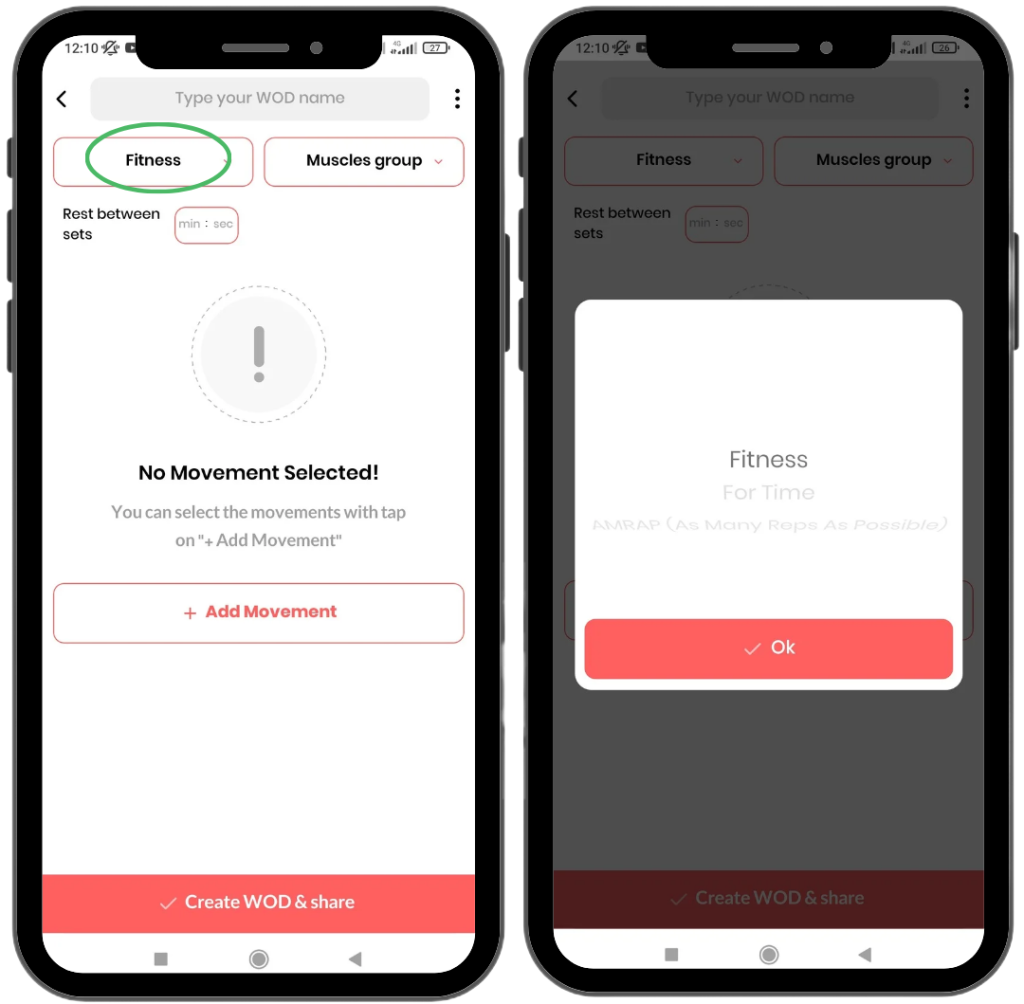
By tapping on the specified button in the image, you can choose your workout model. Once you select any of the workout models, the page will automatically adjust to the features of that model. The available workout models include:
To learn how to work with each of these models, click on it to enter the guide page for that model
Choosing Exercises
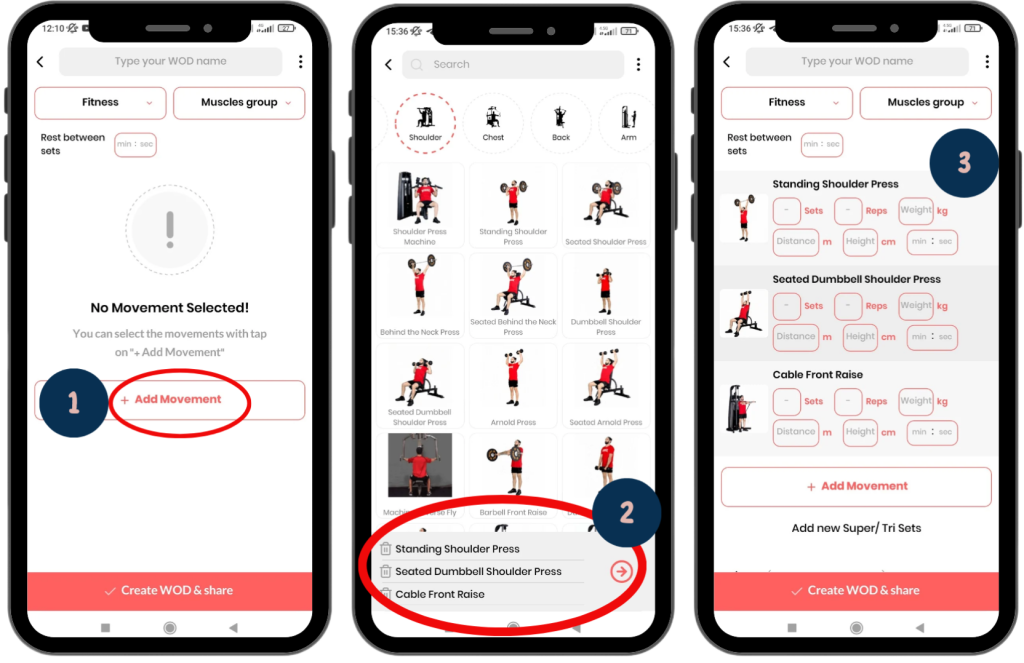
1) To select movements, first click on the Add Movement button.
Then, choose your desired movements from the available options, which are categorized in the list. To change the category, use the dropdown at the top of the page.
You can also use the search bar to find the movements you’re looking for by name.
2)For easier management of your selected movements, each chosen movement will appear in the list at the bottom of the page. Next to each movement, there is a trash icon; clicking it will remove that movement.
Finally, after selecting your desired movements, click on the next icon. 3) Your selected movements will then be listed on the main program page.
Copy/Remove Movement
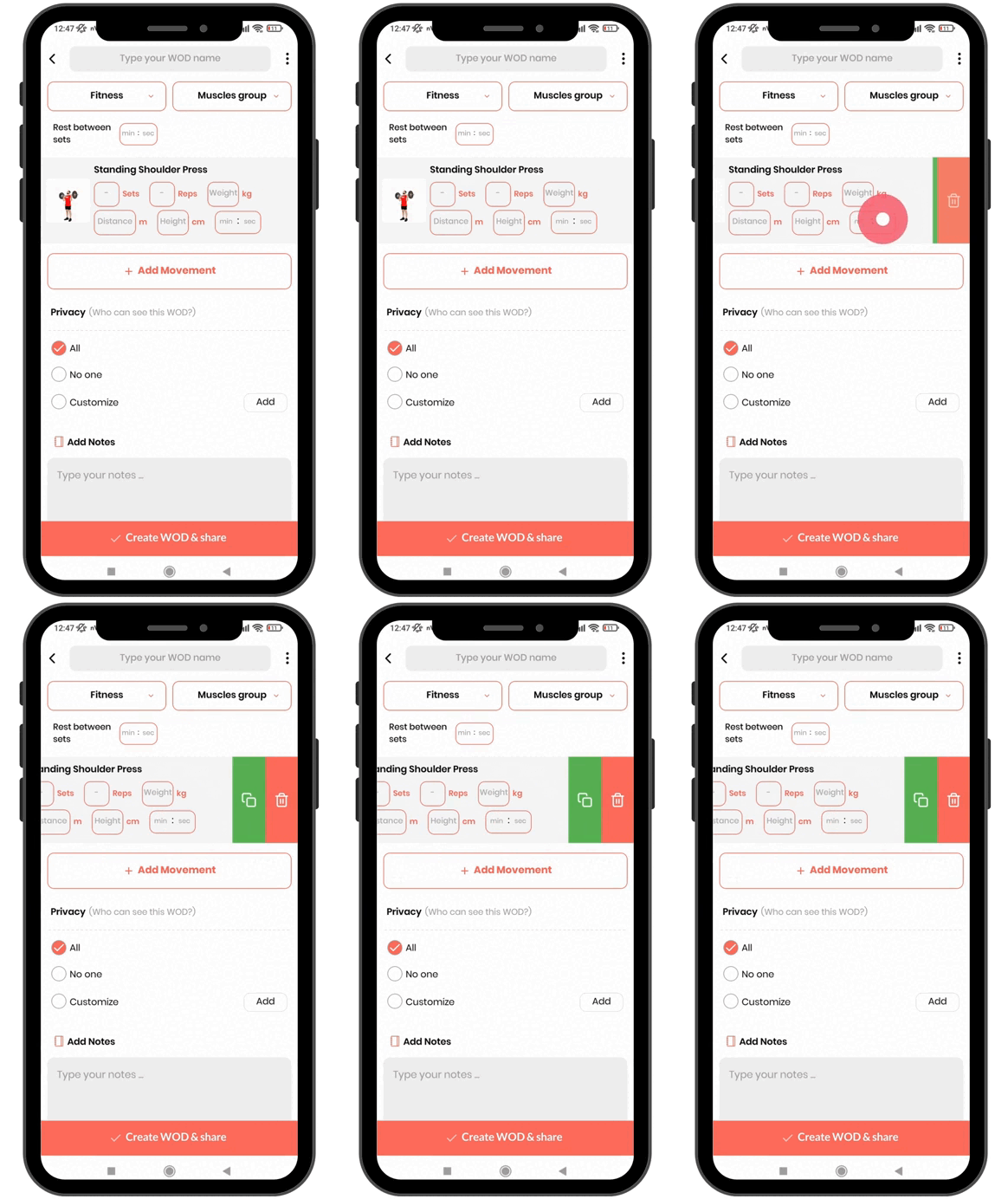
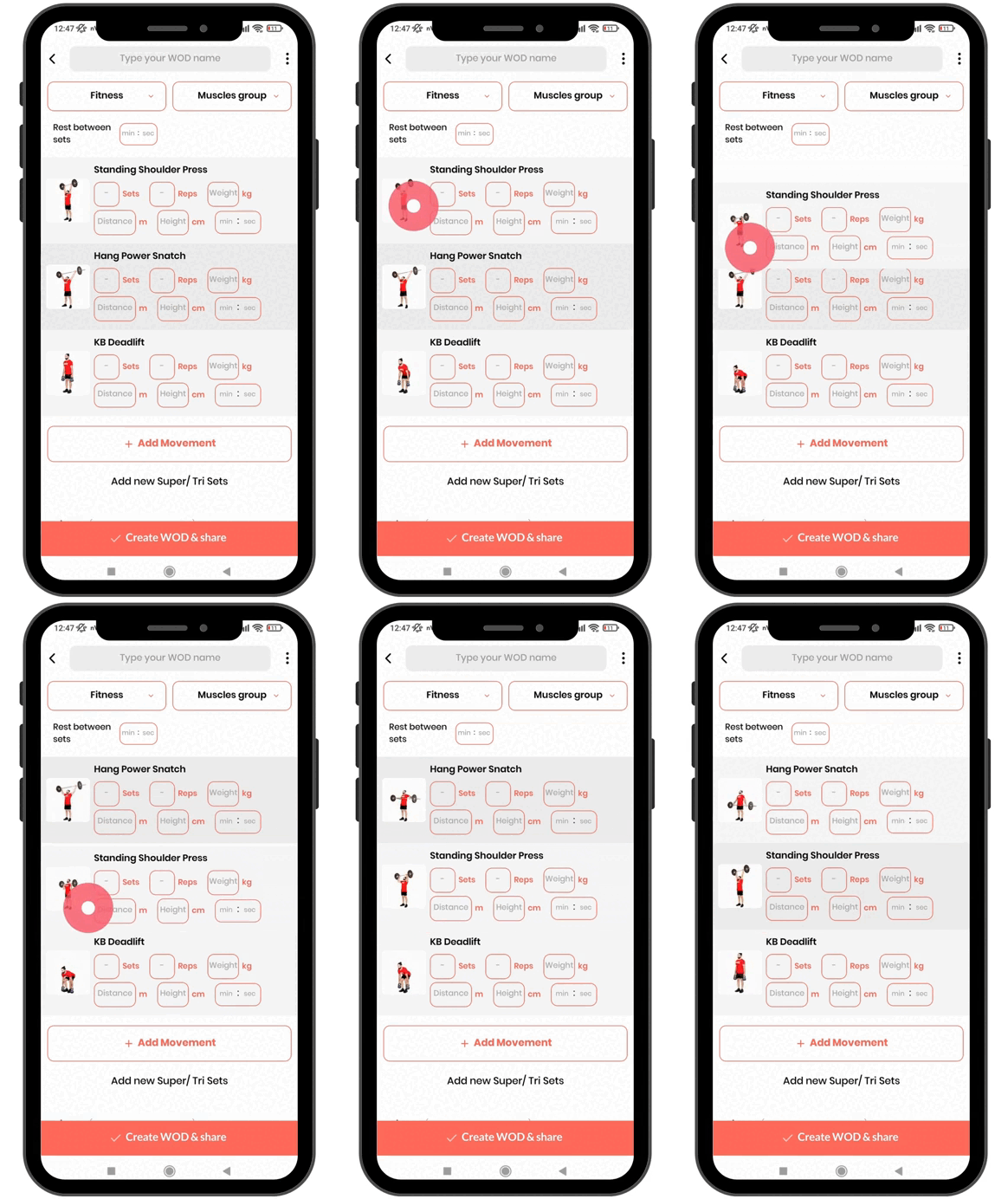
To copy or remove any movement, as shown in the picture, simply drag it to the left
Rearranging Movement Priority
To change the order of movements in the program, simply hold the movement for a moment, then drag it up or down to adjust its priority.
Data for Movements
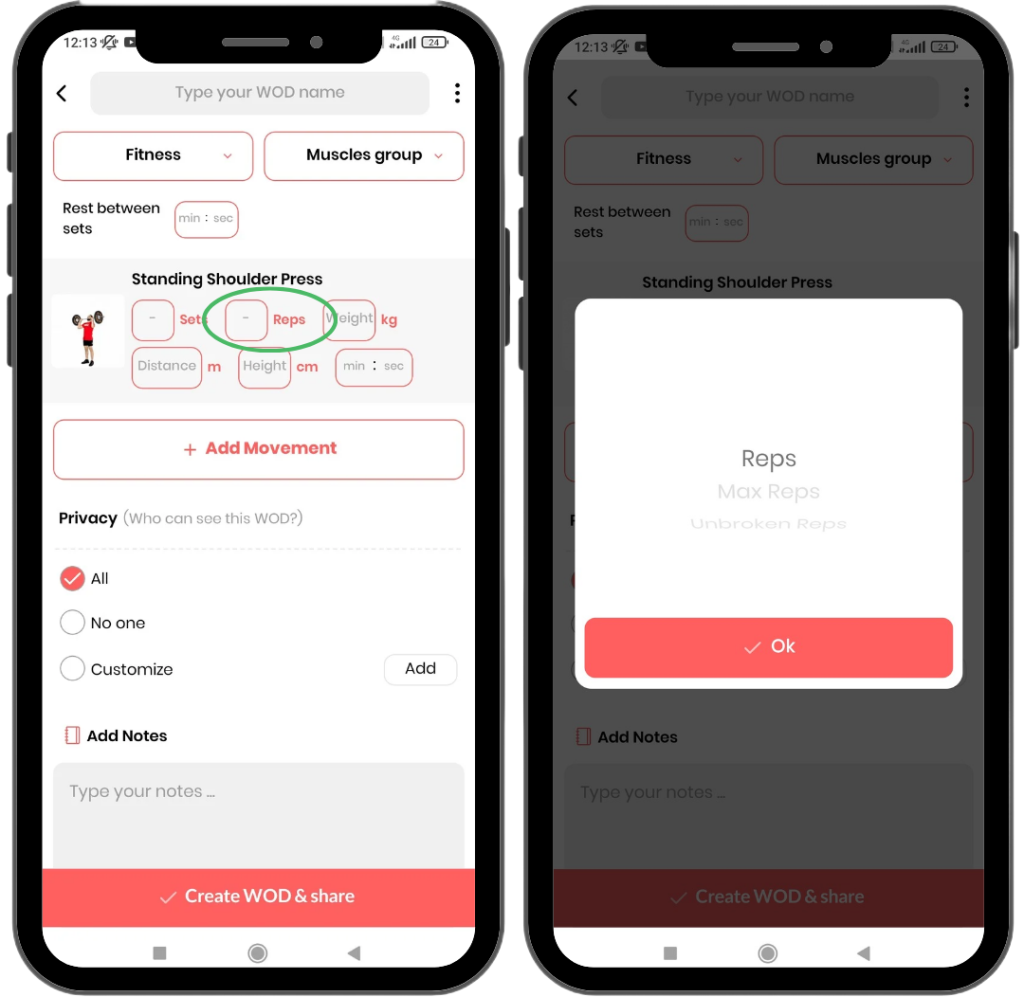
Reps
To enter reps, you can use 3 different methods:
Reps: In this case, you simply enter the desired number of reps.
Max Reps: In this case, you indicate that the athlete must perform the maximum number of reps within a specified time.
Unbroken: In this case, you indicate that the athlete must perform the reps without resting or pausing.
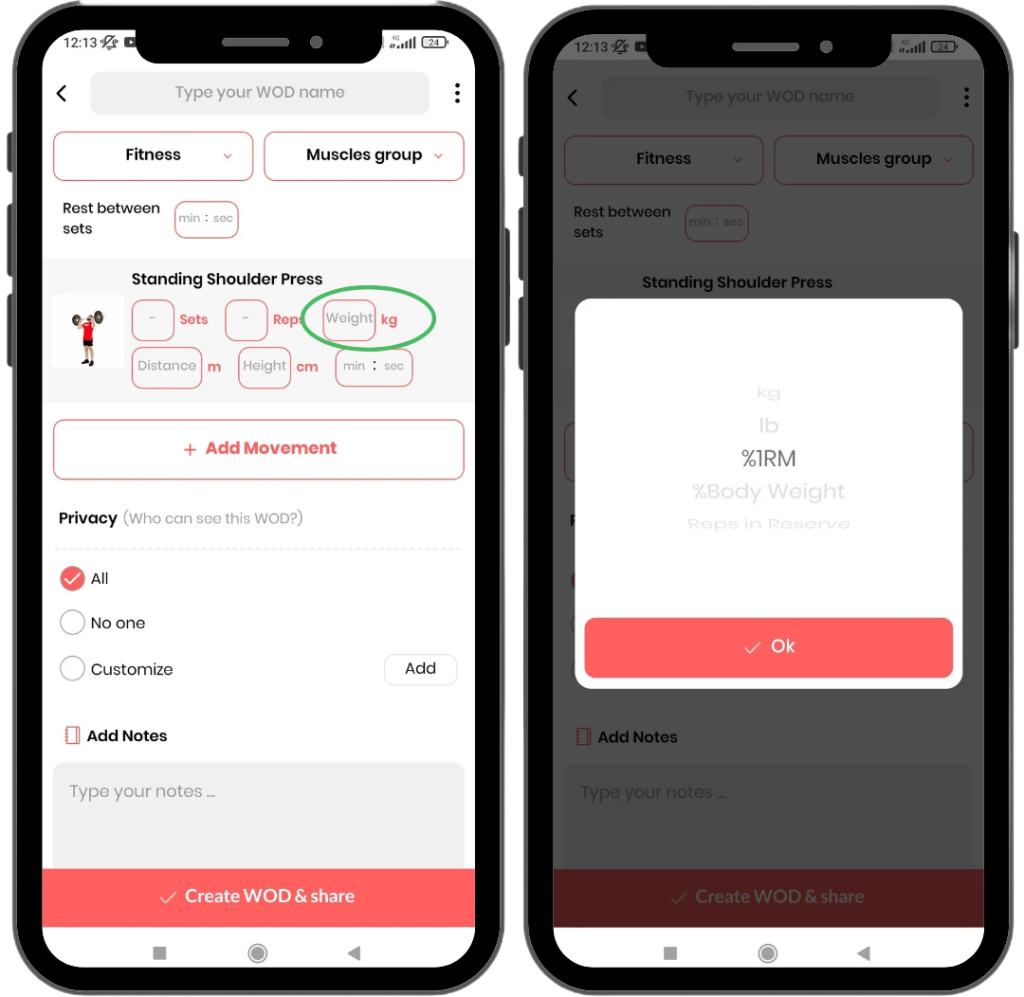
Weight
To assign weight to movements, you can use the following variables:
Kilograms (Kg)
Pounds (lb)
Percentage of One-Rep Max (%1RM)
Percentage of Body Weight (%Body Weight)
Reps in Reverse (RIR)
Pood (Pood)
Maximum Possible Weight (Max Weight)
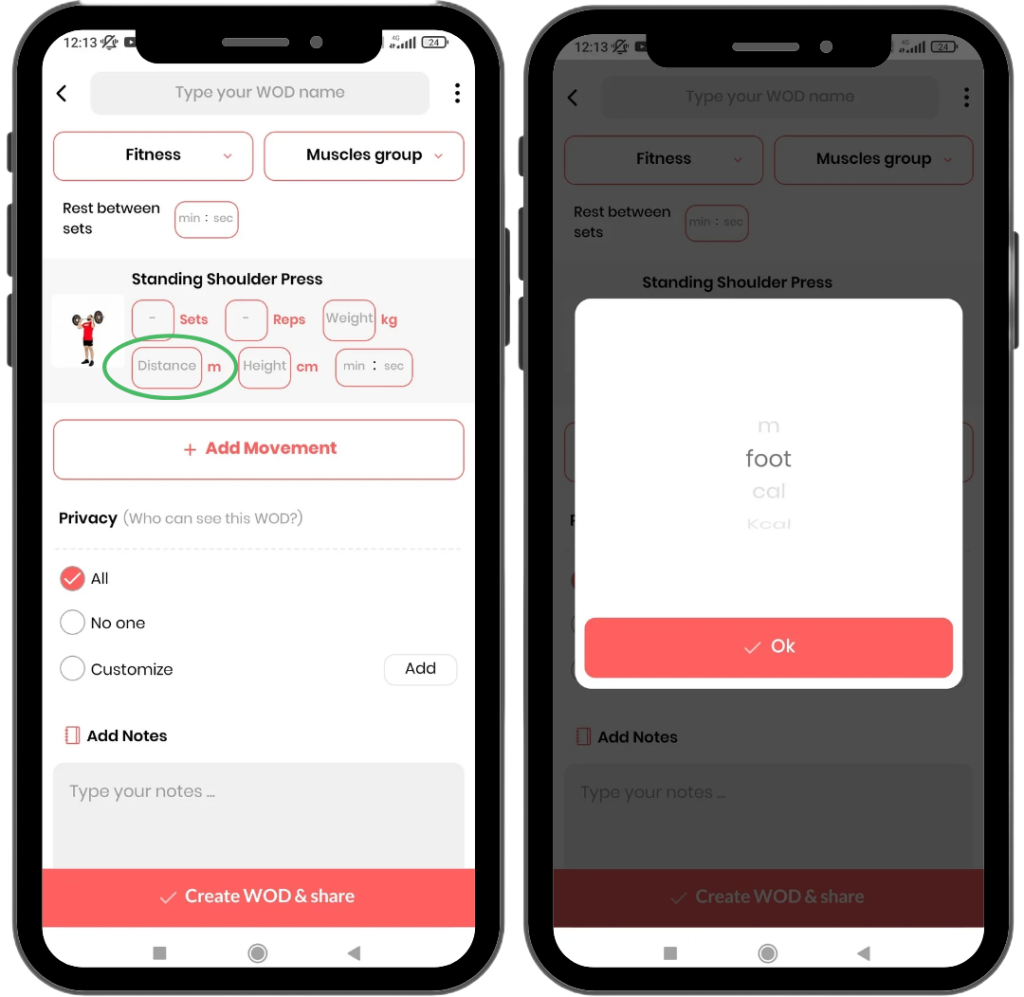
Distance
To specify distance (for biking), you can use the following variables:
Meters (m)
Feet (Foot)
Calories (Cal)
Kilometers (Km)
Yards (Yard)
Miles (Mile)
Maximum Calories (Max Cal)
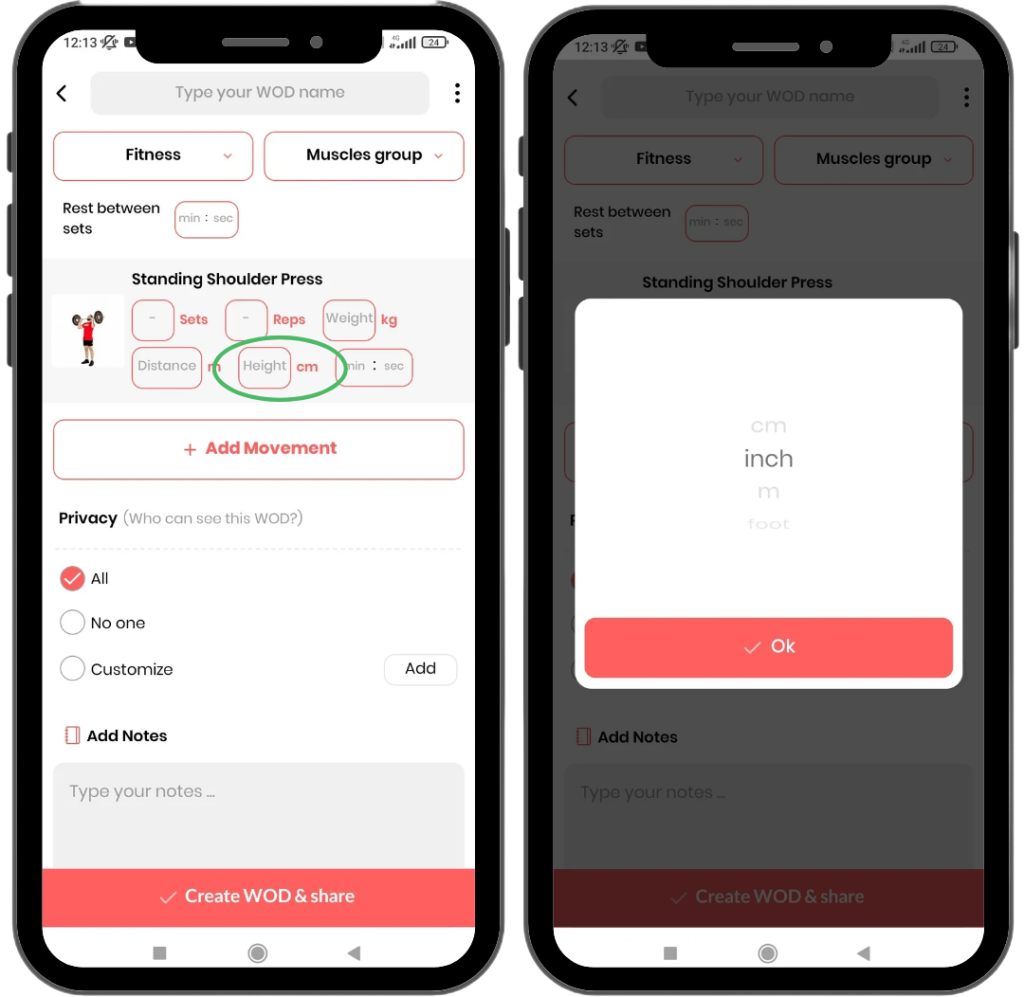
Height
To specify height (for example, box height for jumps), you can use the following variables:
Centimeters (cm)
Inches (inch)
Meters (m)
Feet (foot)
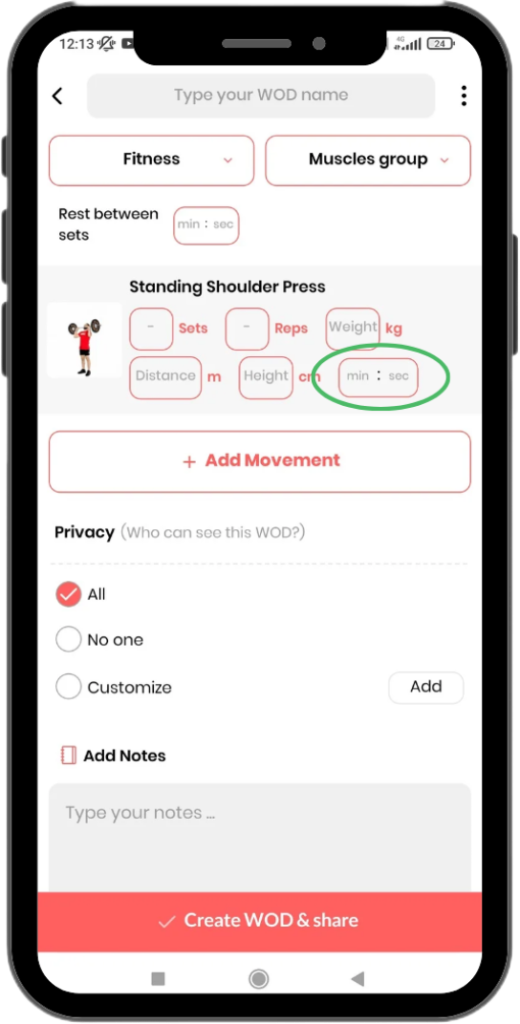
Time
To specify the time, you need to enter the minutes and seconds.
Additional Features
As shown in the image, by tapping on the three-dot icon at the top, you can access the additional features. Here’s an explanation of each one:
Warm-up: By selecting this option, you can add a warm-up program to your main program.
Cool-down: By selecting this option, you can add a cool-down program to your main program.
Scaled Option: By selecting this option, you can create a scaled version of your main program and add it.
Reset: By selecting this option, all the page information will be reset.
Wodex League® is an annual athletic event designed to determine the fittest athlete of the year. The league follows a multi-stage structure that includes both online and in-person...
CrossFit Workout: Sunday, March 09, 2025
This for-time workout emphasizes speed, power, and endurance.Thrusters, a combination of a front squat and push press, engage the entire body with a focus on...